Connect your iPhone and Windows PC on the same local network, then use Clipsharing to move clipboard content between them.
让 iPhone 和 Windows 电脑连接到同一个局域网,即可使用 Clipsharing 在两端同步剪贴板内容。
Important重要提示iOS and Windows must be on the same local network, such as the same router or Wi-Fi.iOS 和 Windows 必须位于同一个局域网内,例如连接到同一个路由器或 Wi-Fi。
01
Download both parts
下载 Windows 软件和 iOS 快捷指令
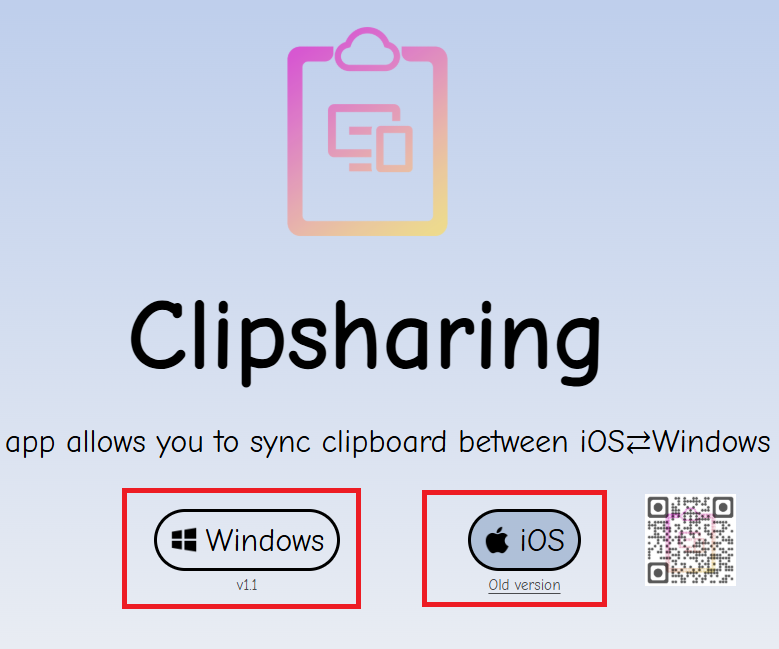
Open the Clipsharing website. Download the Windows app on your computer, and add the iOS Shortcut from your iPhone. You can also scan the QR code on the website with your iPhone.
After downloading, you will get the Clipsharing Windows app. Put it anywhere convenient, such as your desktop or a tools folder.
下载完成后会得到 Clipsharing Windows 软件。你可以把它放在任意方便的位置,例如桌面或常用工具文件夹。
03
Open the Shortcut editor
打开快捷指令编辑页面
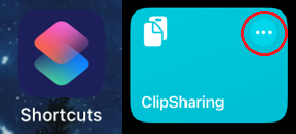
On your iPhone, open the Shortcuts app, find Clipsharing, then tap the three-dot detail button. You will configure the connection to Windows on this edit page.
在 iPhone 上打开“快捷指令”App,找到 Clipsharing,点击右上角的三个点进入编辑页面。后续需要在这里修改连接 Windows 的配置。
04
Copy the Windows address
复制 Windows 地址
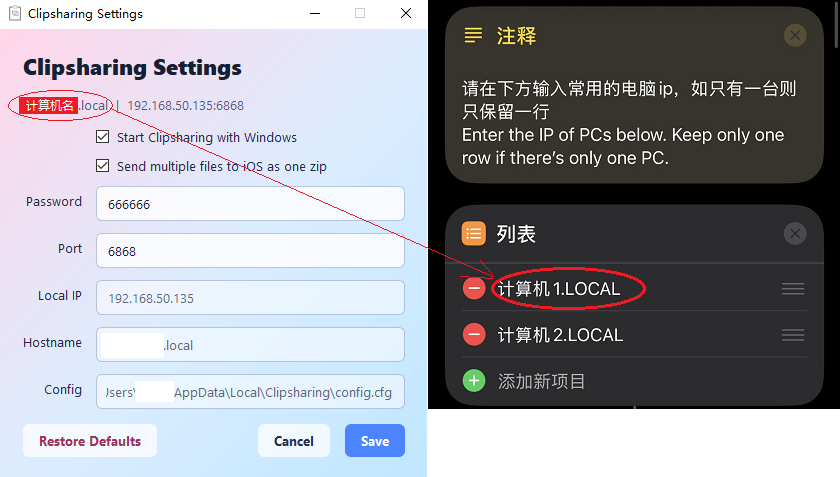
Open Clipsharing on Windows. The first launch opens the configuration page automatically. Copy the shown IP address or hostname.
打开 Windows 端 Clipsharing。首次启动时会自动打开配置页面,请复制页面中显示的 IP 地址或 Hostname。
05
Paste the address into the Shortcut
在快捷指令中填写地址
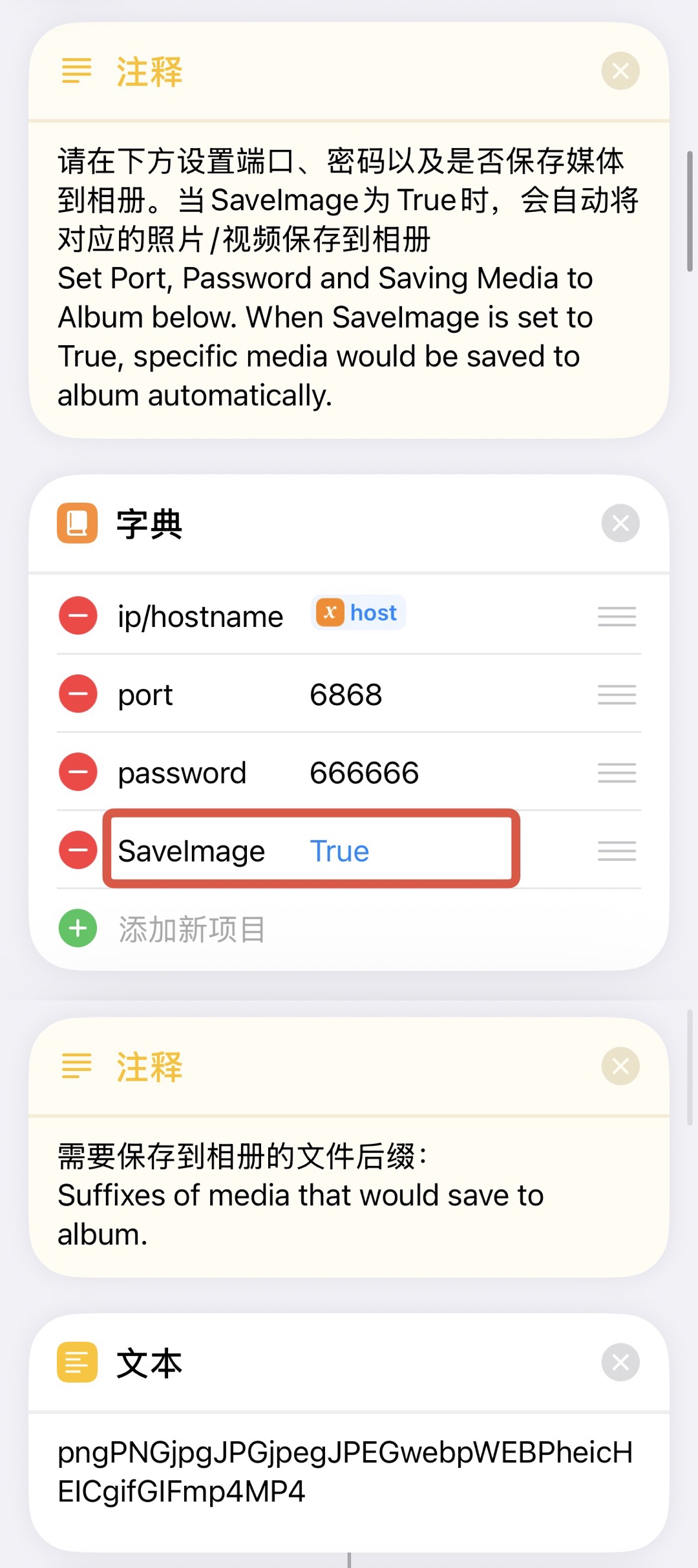
Paste the IP address or hostname into the Shortcut's IP list. The default port and password usually do not need to be changed.
将 IP 地址或 Hostname 填入快捷指令的 IP 列表。端口和密码默认即可,通常不需要修改。
06
Run Clipsharing
开始使用
Keep the Windows app running. When the Clipsharing tray icon is visible in the lower-right corner of Windows, run the iOS Shortcut and start sharing your clipboard.
保持 Windows 端软件运行。只要能在 Windows 右下角任务栏看到 Clipsharing 托盘图标,就可以在 iOS 端运行快捷指令,开始同步剪贴板。
Add Clipsharing to your iPhone Home Screen
添加到 iPhone 主屏幕
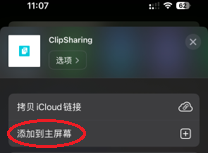
You can add the Shortcut to your Home Screen for faster access. You can also assign it to Back Tap in Settings > Accessibility > Touch > Back Tap, then choose Clipsharing.
When SaveImage is set to True in the Shortcut, Clipsharing automatically saves images and videos from the Windows clipboard to your iPhone album. Set SaveImage to False if you want to turn this off.
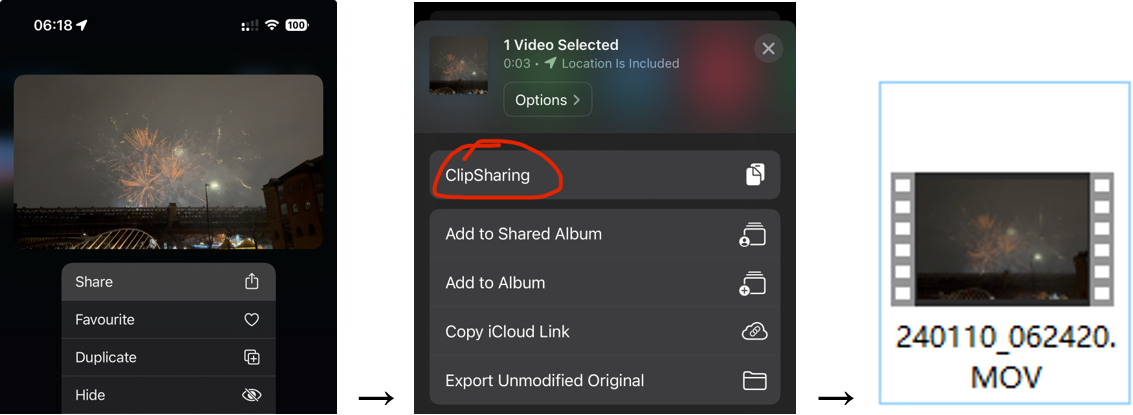
To send one file or a video that cannot be copied, you do not need to keep the Shortcut running. Tap Share in iOS, choose Clipsharing in the share sheet, then paste the file on your Windows PC.
如果只想同步单个文件,或发送无法直接复制的视频,不需要提前运行快捷指令。在 iOS 中点击“分享”,在分享菜单里选择 Clipsharing,随后就可以在 Windows 电脑上粘贴。
Public Wi-Fi, campus networks, and apartments
校园网、公寓网等公共网络
Some public networks block device-to-device connections. If Clipsharing does not work after the steps above, connect your iPhone to your Windows hotspot and set the Shortcut IP to 192.168.137.1. If you must stay on public Wi-Fi, use Tailscale; see the Rednote guide for details.
部分公共网络会限制设备之间互相访问。如果按上述步骤仍无法使用,请让 iPhone 连接 Windows 开启的热点,并把快捷指令中的 IP 设置为 192.168.137.1。如果必须继续使用公共 Wi-Fi,请安装 Tailscale,详情可参考小红书笔记。